Are you looking to implement end-to-end (E2E) testing using Cucumber and Maven? Setting up your environment correctly is the first step toward successful behavior-driven development (BDD). Here is a step-by-step guide to getting your first test running in IntelliJ IDEA.
Prerequisites
Before starting, ensure you have the Cucumber for Java and Gherkin plugins installed in IntelliJ.
Step-by-Step Setup Guide
1. Initialize Your Project
- Go to File > New > Project.
- Select Maven and create the project.
- Open your
pom.xmland add the necessary dependencies for Cucumber, Selenium, and JUnit.
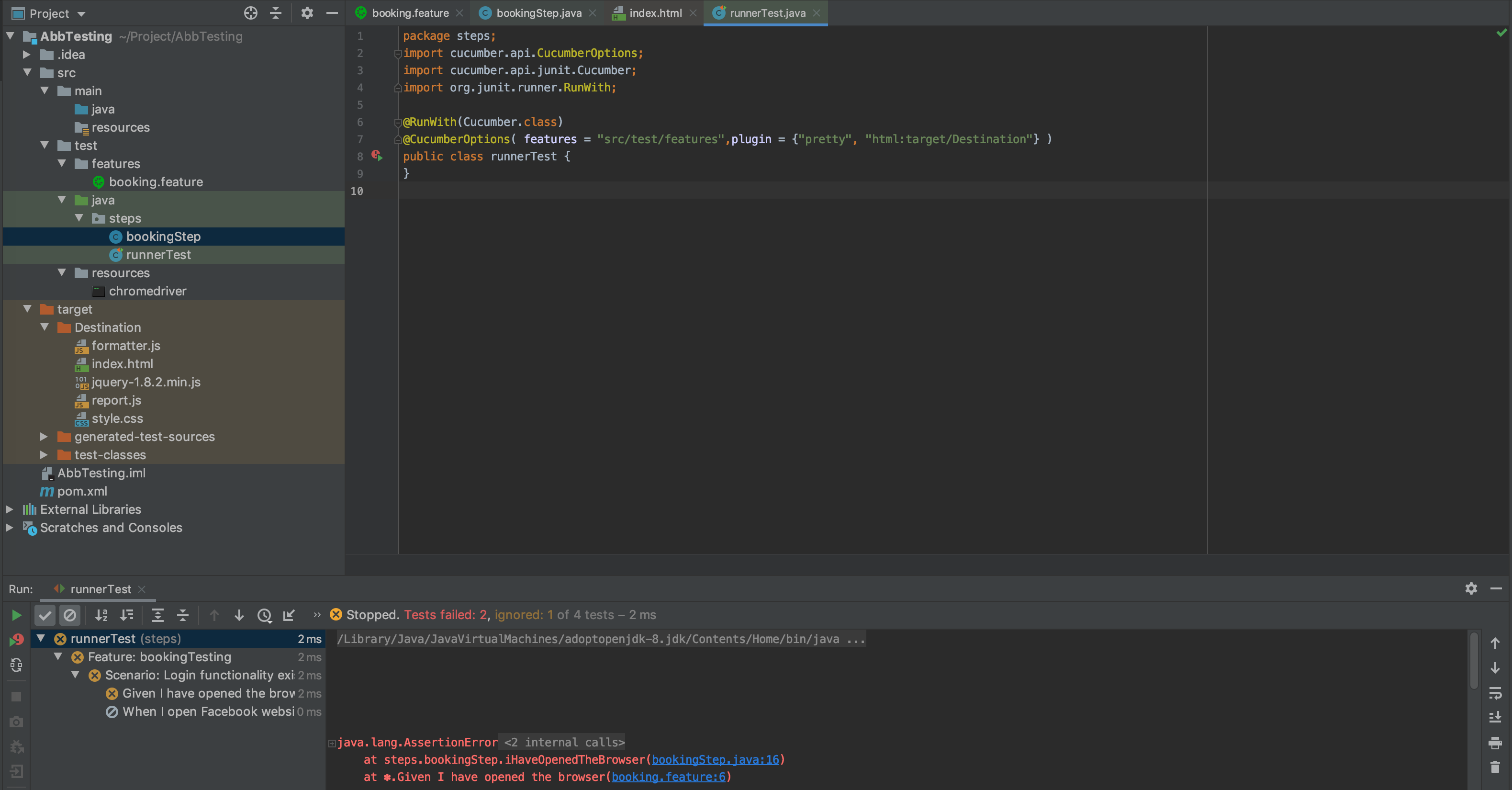
2. Configure the Folder Structure
Organize your project to keep your feature files and Java code separate:
- Features: Create a folder at
/src/test/features. - Java Code: Create
stepsandresourcesfolders under/src/test/java.
3. Create Your First Test
- Feature File: Add
booking.featureto your features folder. Write your test scenarios using Gherkin syntax (Given, When, Then). - Step Definitions: Create a Java class in the
stepsfolder to map the Gherkin steps to executable code.
4. Add WebDriver and Resources
- Download the chromedriver and place it in your
src/test/resourcesfolder.
5. Create the Test Runner
Create a runnerTest.java file in your steps folder. This acts as the entry point for your tests.
Critical Path Reminders
To avoid common “Path Not Found” errors, ensure your configurations are exact:
A. Cucumber Options
In your runnerTest.java, define the path to your features and where the report should be generated:
@CucumberOptions(
    features = "src/test/features",
    plugin = {"pretty", "html:target/Destination"}
)
public class runnerTest {
}
B. WebDriver Path
In your bookingStep.java, set the system property to point to your local chromedriver:
System.setProperty(“webdriver.chrome.driver”, “./src/test/resources/chromedriver”);
C. Helpful Tools
Use ChroPath (a Chrome extension) to easily find and verify CSS selectors and XPaths for your web elements.
Running Tests & Results
- Right-click on
runnerTest.java. - Select Run “runnerTest”.
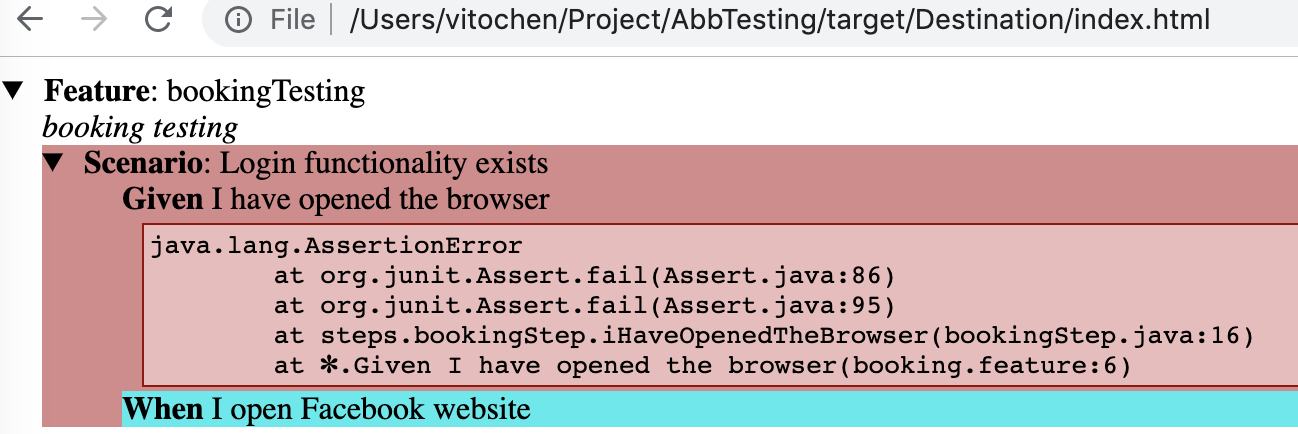
- Once the execution finishes, navigate to
target/Destinationto view your HTML Test Report.